
How to Detect and Block Bot Traffic in GA4
GA4 showed 30,000 visits. Search Console showed 30. The gap was bots. How to spot bot traffic in GA4 and block it with Cloudflare before it skews your reports.

Tilen Ledic
Written by

We ran an SEO audit for a store recently. The owner opened with a proud number: 30,000 visitors a month, straight from GA4.
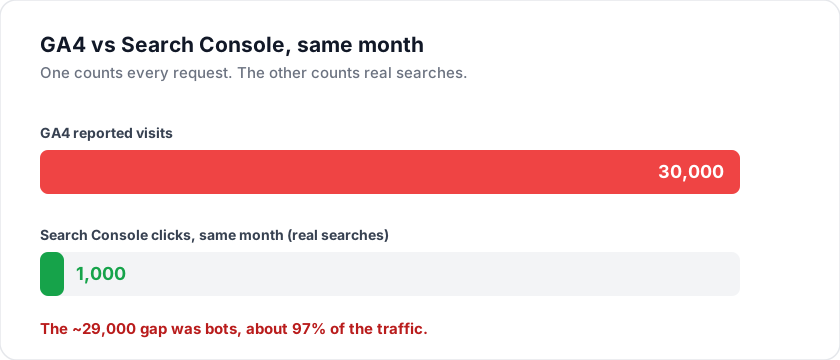
So we opened Google Search Console for the same domain. Real clicks from real searches: about 30 a day.
Put both on the same monthly scale and the picture is stark. Around 1,000 real visits hiding inside 30,000 reported ones. The roughly 29,000 in between was bot traffic that GA4 counted as ordinary sessions. The owner had been making decisions, briefing freelancers, and judging campaigns against a number that was almost entirely fake. The traffic was real in the sense that the requests happened. It just was not made by people.
This is one of the most common things we find when we audit a store's analytics. If GA4 is your only window, bot traffic looks exactly like an audience. Here is how to tell the difference, and how to shut the bots out with Cloudflare so your reports go back to describing humans.
Why bot traffic shows up in GA4
GA4 has built-in traffic filtering. It drops known bots and spiders from the IAB/ABC International Spiders and Bots List automatically, and you cannot turn it off. That sounds like enough. It is not.
The list only covers known, declared crawlers. It does nothing about the large, messy middle of invalid traffic: scrapers, headless browsers, click farms, SEO tools, AI training crawlers, and cheap automation running out of data centers. Many of them load your GA4 tag and fire a page_view like any browser, because they are a browser, just driven by a script instead of a person.
The result is sessions that count as visits but behave nothing like a human. They land, fire one event, and leave in under a second. Stack thousands of them on top of a small real audience and your traffic chart looks like a hockey stick that nobody in sales can explain.
How to spot bot traffic in GA4
You do not need a forensic tool. Bots leave the same fingerprints every time. Open Reports > Acquisition > Traffic acquisition, or build an Exploration, and add Country, Sessions, Average engagement time, and Engagement rate. Then look for these patterns:
- Near-zero engagement time. Real shoppers spend seconds to minutes on a page. Bots average 0 to 2 seconds. An engagement rate near 0% on a chunk of sessions is the loudest signal there is.
- Countries that do not match your market. A Slovenian or Dutch store suddenly pulling thousands of sessions from Singapore, China, or Brazil, with no ad spend or content aimed there, is almost always automation.
(not set)and Direct/Unassigned bloat. Old-school referral spam announced itself with fake domains; today's bots rarely carry a referrer at all, so they pile into Direct and(not set). If those buckets balloon while orders stay flat, you are looking at noise.- A flat, inhuman rhythm. Real traffic breathes with the day. Bot bursts arrive at constant volume around the clock.
This is the exact view we built into our GA4 report so you do not have to assemble it by hand. It flags suspicious sessions, splits them by country, and labels each row BOT or REAL using two simple rules: engagement under 10% and session duration under 10 seconds.
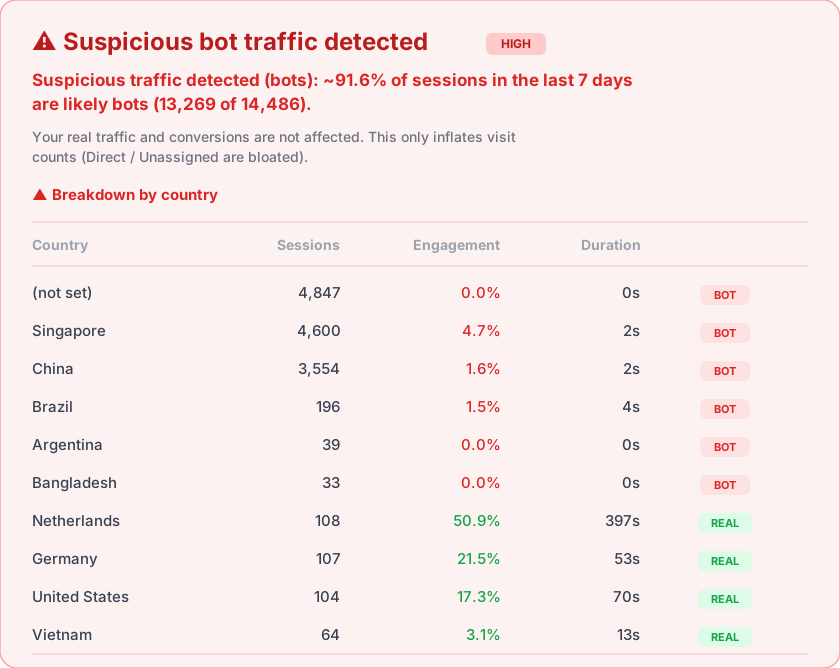
In that snapshot, 13,269 of 14,486 sessions over seven days, about 91.6%, are bots. The real audience is the handful of rows at the bottom with double-digit engagement and minutes of session time. Everything above it is the 30,000-visitor illusion.
How to block bot traffic with Cloudflare
Filtering bots inside GA4 reports tells you the truth about your numbers, but it does not stop the requests hitting your site. The clean fix is at the edge, before the traffic ever reaches your store or fires your tag. If your domain is on Cloudflare, you already have bot management tools built in.
- Turn on Bot Fight Mode. In the Cloudflare dashboard, go to Security > Bots and enable Bot Fight Mode (free plans) or Super Bot Fight Mode (paid). It challenges and drops traffic from known bot networks and hosting providers automatically. This alone removes most data-center noise.
- Add a WAF rule for the worst offenders. Under Security > WAF > Custom rules, create a rule that blocks or challenges traffic from countries you do not sell to, or from hosting ASNs. Example expression:
(ip.geoip.country in {"SG" "CN" "BR"}) and not http.request.uri.path contains "/wp-admin". Start with Managed Challenge, not an outright block, so you never wall off a real customer. - Rate-limit aggressive hitters. A real shopper does not request 40 pages in 10 seconds. A Rate limiting rule that challenges anything past a sane threshold catches scrapers that rotate around geo rules.
- Verify against GA4 a week later. Reopen the bot view above. If Bot Fight Mode and your rules are working, the flagged countries and the
(not set)pile shrink, and your session count drops to something that finally tracks with Search Console and your orders.
Block first with a challenge, watch for a week, then tighten. The goal is a session count you can trust, not a fortress that turns away buyers.
What bot traffic does and does not touch
Bot traffic inflates visit counts. It does not create orders. That is the reassuring part, and the reason this matters less than it looks. No bot enters a credit card and checks out. So while your sessions, bounce rate, and engagement metrics are polluted, your actual revenue is clean.
That gap is the whole argument for measuring your store from the order up instead of the session down. An order exists in your shop's database whether or not a bot ever loaded your GA4 tag. It carries a real payment, a real customer, and (if you capture it) the click that drove it. That is why order-based attribution does not flinch when bots flood your sessions: it never counted sessions in the first place. It is the same reason server-side tracking fixes capture but not measurement. The order is the source of truth; everything else is an estimate sitting on top of it.
Monitor your bot traffic share weekly, not once
Bot traffic is not a one-time cleanup. New botnets find your domain, a scraper picks up your product feed, an AI crawler discovers your sitemap. The number creeps back. The stores that keep clean data are the ones that watch this, the same way they watch revenue.
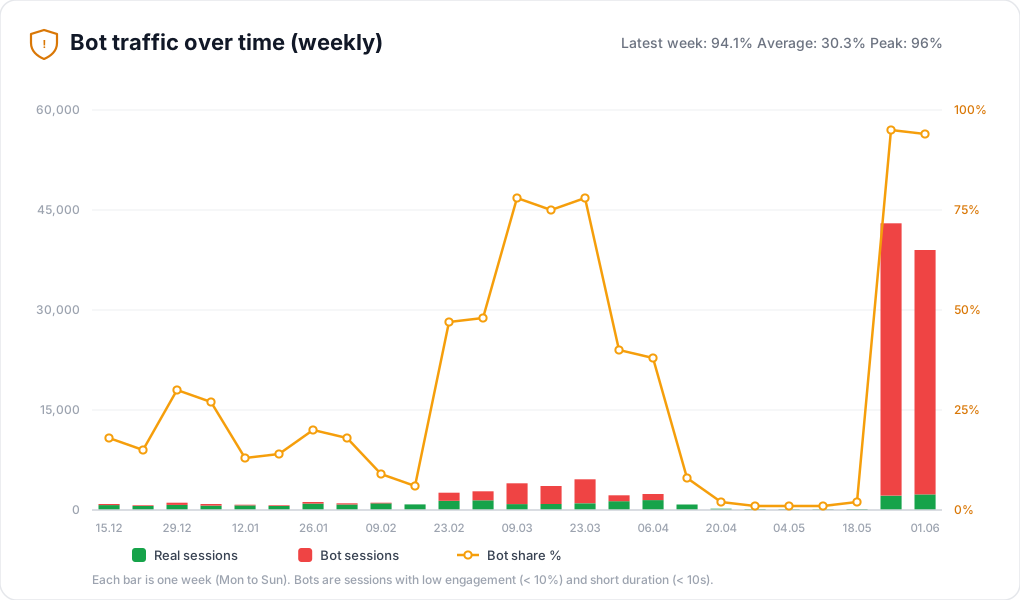
That spike on the right is exactly what you want to catch the week it happens, not the month after. A botnet finds the site, real sessions stay flat near the bottom, and the share jumps from near zero to 94% in one week. Watching the trend turns a nasty surprise into a same-week fix.
That is why we surface the bot view inside Enalitica's GA4 report rather than burying it in an Exploration you have to rebuild every time. You see the suspicious share at a glance, week over week, next to the traffic and revenue numbers you already check. When Singapore spikes again, you know to add a rule, not to celebrate a new market.
And once your visit counts are honest, the next question is the one that actually pays: which traffic made money? GA4 will tell you sessions. It will not reliably tell you that Organic started a journey Google Ads closed, because the platforms each count in their own walled garden. Enalitica ties every order back to the channel, keyword, and campaign that earned it, server-side and reconciled to your real revenue. Bots inflate vanity metrics. Order-based attribution measures the only metric that lands in your bank account.
If you want to see your own store's real traffic-versus-bot split, and the revenue underneath it, book a demo and we will run it on your data or a demo account.
Frequently Asked Questions
Does GA4 filter bots automatically?
Partly. GA4 automatically excludes known bots and spiders from the IAB/ABC International Spiders and Bots List, and this cannot be disabled. But that list only covers declared, well-behaved crawlers. Scrapers, headless browsers, click farms, and data-center automation are not on it, so they sail straight into your reports as ordinary sessions.
Will bot traffic affect my conversions and revenue in GA4?
Almost never on the revenue side. Bots load pages and fire view events, but they do not complete checkout or enter payment details, so your purchase and revenue numbers stay clean. What they distort is everything above the sale: sessions, users, engagement rate, bounce rate, and channel splits, especially Direct and (not set).
How do I know if a spike in traffic is bots or real growth?
Check engagement time and geography first. Real growth comes with realistic session durations (seconds to minutes) and from markets you actually serve or advertise in. A spike that arrives with near-zero engagement, from countries you do not sell to, and lands mostly in Direct or (not set), is bot traffic. Cross-check against Search Console clicks and your order count: if those did not move, the visitors were not people.
Can I block bot traffic without Cloudflare?
Yes, but it is harder. You can use server-level rules (for example .htaccess blocks by user agent or IP), a WordPress security plugin, or a referral-exclusion and IP-filter setup inside GA4 itself. Cloudflare is the cleanest because it stops the request at the edge before it touches your site or fires your tag, so the bot never enters your data in the first place.
Why does Search Console show so much less traffic than GA4?
Because they measure different things. Search Console only reports clicks from Google Search results, which are overwhelmingly human. GA4 counts every session that loads your tag, including automated ones. A large gap usually means GA4 is inflated by bots rather than Search Console under-counting. When the two are wildly apart, trust Search Console's clicks and your order numbers as the human signal.
See your real numbers
Import 30 days of orders or leads instantly during 5-minute onboarding. Works for e-commerce and service businesses.
Start free