
PayPal Is Not Your Best Marketing Channel: How to Set Up Unwanted Referrals in GA4
When shoppers return from PayPal or Klarna, GA4 credits the gateway with the sale. How to set up unwanted referrals in GA4 and fix attribution in 5 minutes.

Tilen Ledic
Written by
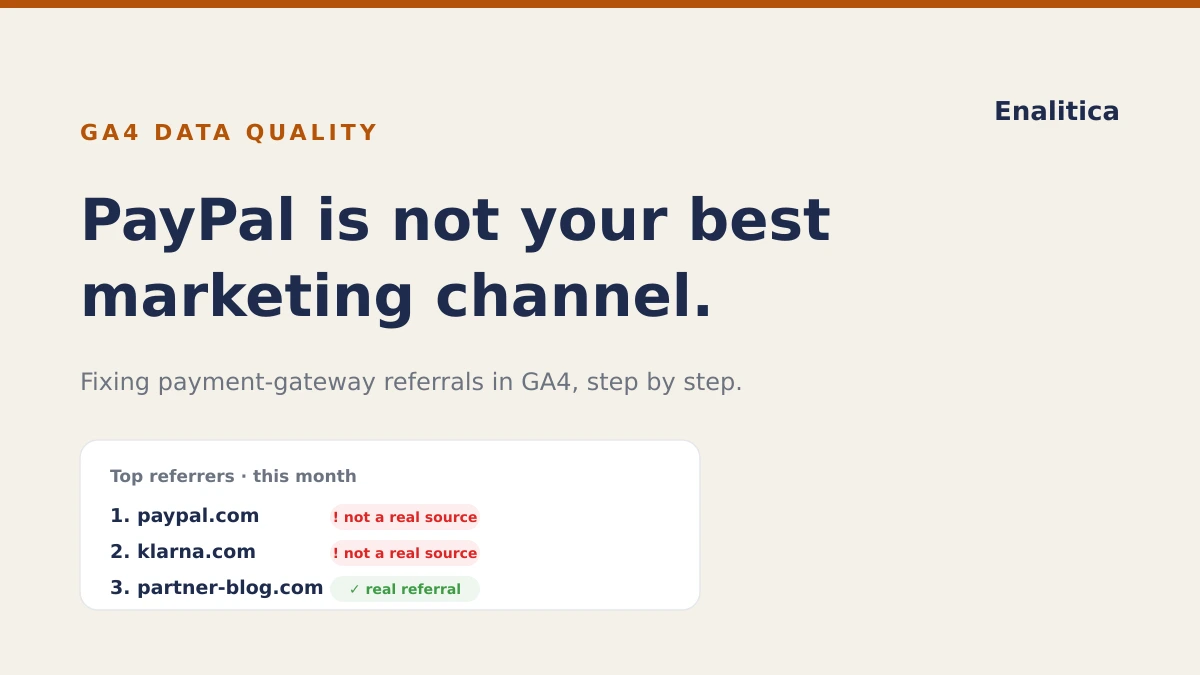
Open your GA4 referral report and there is a decent chance paypal.com, klarna.com or your bank's 3D Secure page sits near the top of your "traffic sources". Congratulations: your best marketing channel is apparently the page your own customers pass through while paying you. The cure is GA4's list of unwanted referrals, the successor to Universal Analytics' referral exclusion list, and it takes about five minutes to set up.
Here is what actually happens. A shopper clicks your Google ad, fills the cart, and gets redirected to PayPal (or Klarna, Stripe, or the bank's card-verification page) to pay. When they return to your store to finish the order, GA4 sees them arriving from paypal.com and, unless you tell it otherwise, can hand that session, and the purchase in it, to "paypal.com / referral". The ad that earned the sale loses it. For brand-new customers it gets worse: their permanent "first user source" is recorded as PayPal.
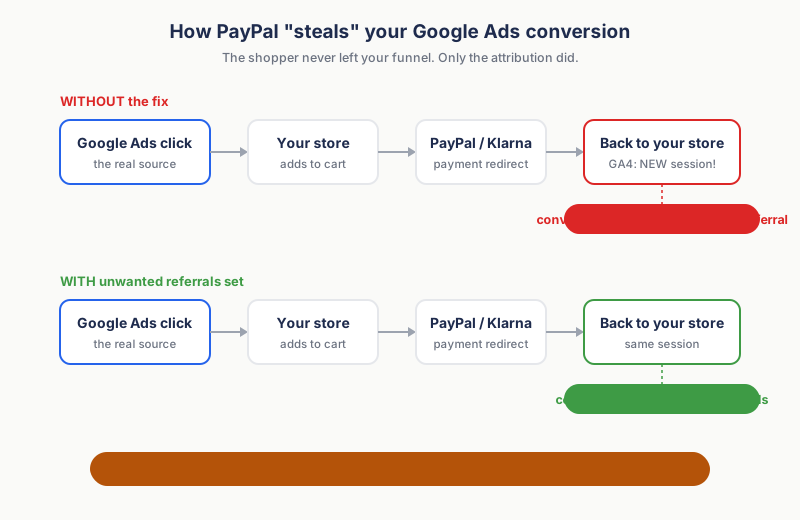
The result: your ad channels look weaker than they are, "referral" looks like a star performer, and Google's Smart Bidding gets fewer conversion signals to learn from. There is no reliable industry-wide number for how much revenue this misroutes, and you do not need one; your own report will tell you in 30 seconds.
Step 0: Check GA4 for Payment Gateway Referrals (30 Seconds)
- In GA4, open Reports → Acquisition → Traffic acquisition.
- Search for "referral" or set the dimension to Session source / medium.
- Look for payment names: paypal, klarna, stripe, sofort, mollie, adyen, your bank's 3D Secure domain, or a local gateway (in Slovenia typically bankart.si or corvuspay).
If any of those payment domains shows sessions, and especially revenue, your session attribution is leaking to the gateway; keep reading.
The GA4 Fix: List Unwanted Referrals, Step by Step
You need the Editor role (or higher) on the GA4 property. The whole thing takes about five minutes.
- Click Admin (the gear icon, bottom left).
- Under Data collection and modification, click Data streams.
- Select your web data stream (the setting exists only for web streams).
- Scroll down and click Configure tag settings.
- In the Settings section, click Show all to reveal the hidden options.
- Click List unwanted referrals.
- Add a condition for each payment domain: match type Referral domain contains, value e.g.
paypal.com. Conditions combine with OR, and you can add up to 50. - Click Save.
That is the entire setup. Changes apply to new data only and typically show up in reports within a day or two.
Which Payment Gateway Domains to Add in GA4
The golden rule: add the gateways you actually use, confirmed in your own referral report from Step 0. A sane starting list for most European stores:
| Domain | What it is |
|---|---|
paypal.com | PayPal checkout |
pay.google.com | Google Pay (never add plain google.com!) |
stripe.com | Stripe hosted checkout (covers checkout.stripe.com) |
klarna.com | Klarna |
sofort.com | Sofort / Klarna group |
| your bank's 3DS domain | The card-verification page your shoppers see (e.g. bankart.si, corvuspay.com, or your acquirer's 3DS host) |
Two warnings. First, never add broad domains like google.com or facebook.com; you would erase real traffic sources, not fake ones. pay.google.com is the payment domain, google.com is your organic and ads traffic. Second, do not add genuine referral partners (press, affiliates, partner blogs); those are exactly the referrals you want to measure.
Shopify note: if you see checkout.shopify.com or pay.shopify.com as referrers, the same fix applies, but check your report first; modern Shopify GA4 integrations often handle this already.
What the ignore_referrer Fix Does (and Does Not Do)
- The unwanted-referral fix reroutes credit, honestly. GA4 tags matching traffic with
ignore_referrerand looks past the gateway: if the session has a real prior source (your ad, organic, email), that source keeps the credit; if there genuinely was nothing before, it becomes direct. The gateway stops appearing as a source either way. - It is forward-only. Historical data stays wrong; there is no retroactive cleanup. One more reason to set it up today.
- It does not fix long payment detours. If a shopper spends longer than your session timeout at the gateway (default 30 minutes), a new session still starts on return (a session break), just not one credited to PayPal. If your gateway flow is slow, consider raising the session timeout in the same stream settings.
- It is not cross-domain measurement. If your own checkout lives on a separate domain of yours, set up cross-domain tracking under "Configure your domains" instead; that feature links your domains and ignores referrals between them automatically.
Payment gateways are not the only last-click thieves: coupon sites and affiliate networks run the same interception at checkout, with a commission attached; the mechanics and the fix are in affiliate attribution without double counting.
How Enalitica Flags Payment Gateway Referrals
We built payment gateway detection into Enalitica because we kept seeing it in the wild: the Pregled prometa (traffic overview) and Referral views automatically flag payment gateways and login/SSO redirects with a warning badge, so a paypal.com row is never mistaken for a real acquisition source, and the in-app note points you to this exact GA4 setting. And because Enalitica's attribution starts from the order (the click ID travels with the order itself), our revenue attribution is not fooled by payment redirects even before you fix GA4. Fix it anyway: your GA4 property feeds your ad platforms, your reports, and every tool downstream. And if quirks like this have you considering a switch, we sorted the GA4 alternatives by category. If you want attribution that reconciles to real orders while GA4 does its best, book a demo or start free.
Frequently Asked Questions
Will this fix my historical reports?
No. The setting applies from the moment you save it; past sessions keep their paypal.com attribution. Annotate the date you made the change and treat before/after comparisons accordingly.
Should I add every payment provider that exists, up to the 50-condition limit?
No. Add only what appears in your own referral report. A condition for a gateway you never use does nothing except make the list harder to audit, and broad "just in case" conditions are how people accidentally exclude real sources.
Why do I still see some direct traffic spikes around checkout after the fix?
Two likely reasons: shoppers who took longer than the session timeout at the gateway (their return starts a fresh session), and journeys that genuinely had no prior source. The fix removes the fake "referral" label; it cannot invent an original source that was never captured. If Direct is ballooning site-wide rather than just around checkout, start with why direct traffic gets so high and check for bot traffic in GA4.
Is this the same as the referral exclusion list from Universal Analytics?
Same intent, different mechanics. UA's list lived at property level; GA4 configures it per web data stream and implements it by tagging events with ignore_referrer. If you migrated from UA and never redid this setting in GA4, that is likely why the gateways reappeared.
Does this affect how Enalitica attributes my orders?
No. Enalitica attributes from the order itself, using the click ID captured server-side, so payment redirects never enter the picture. The GA4 setting fixes your GA4 property, which still matters for Google's own reporting and every tool that reads from it.
See your real numbers
Import 30 days of orders or leads during a 5-minute onboarding. Works for e-commerce and service businesses.
See plans and pricing